Guides · 1 min read
How to use several plates and the right bed size for your printer
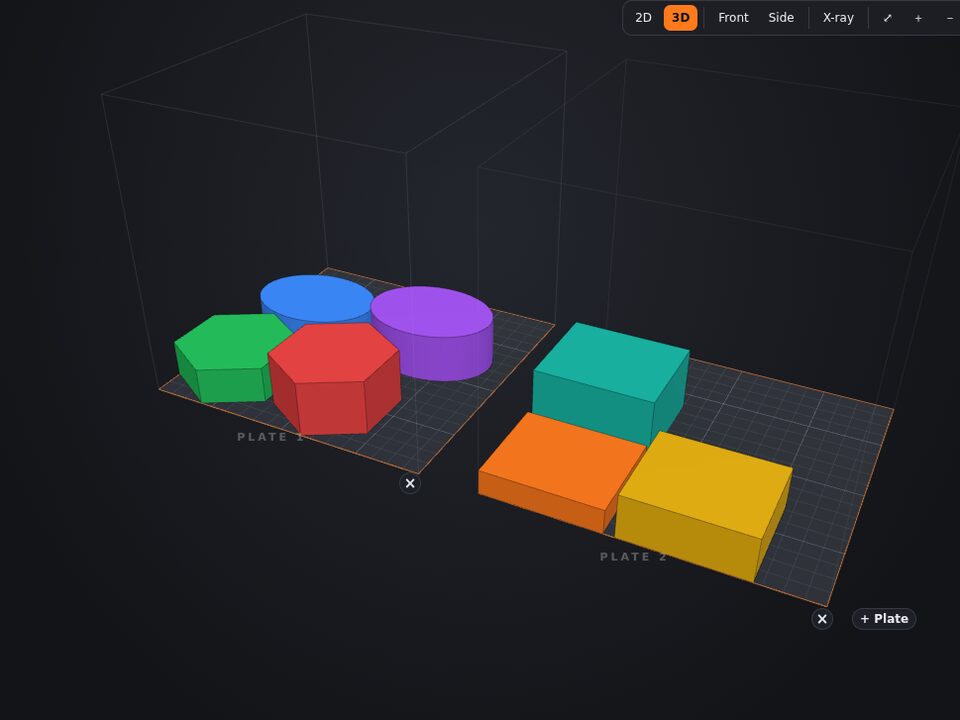
Like in Bambu Studio, each plate in Lok3D is one print. Choose your printer once: the bed size is remembered for your next projects.
Step by step
- Choose your printer
In the Print tab, pick the printer from the list (grouped by brand) or type a custom bed size. Lok3D remembers it for your next projects.
- Add plates
Click "+ Plate" right on the bed, next to the last plate, or in the Print tab. Each plate has an × to delete it.
- Arrange automatically
"Arrange on plates" spreads all parts without overlapping, biggest first, and adds plates when needed.
- Download or open each plate
Each plate has its own 3MF button. "Open in Bambu Studio / OrcaSlicer" asks which plate to send: slice and print, then open the next.
Tips
- A part belongs to the plate under its center; the red warning shows parts that do not fit.
- Bambu Studio and OrcaSlicer only keep plates separate in projects made in them, so each plate goes as its own print.
Other guides
 A free Tinkercad alternative made for 3D printing
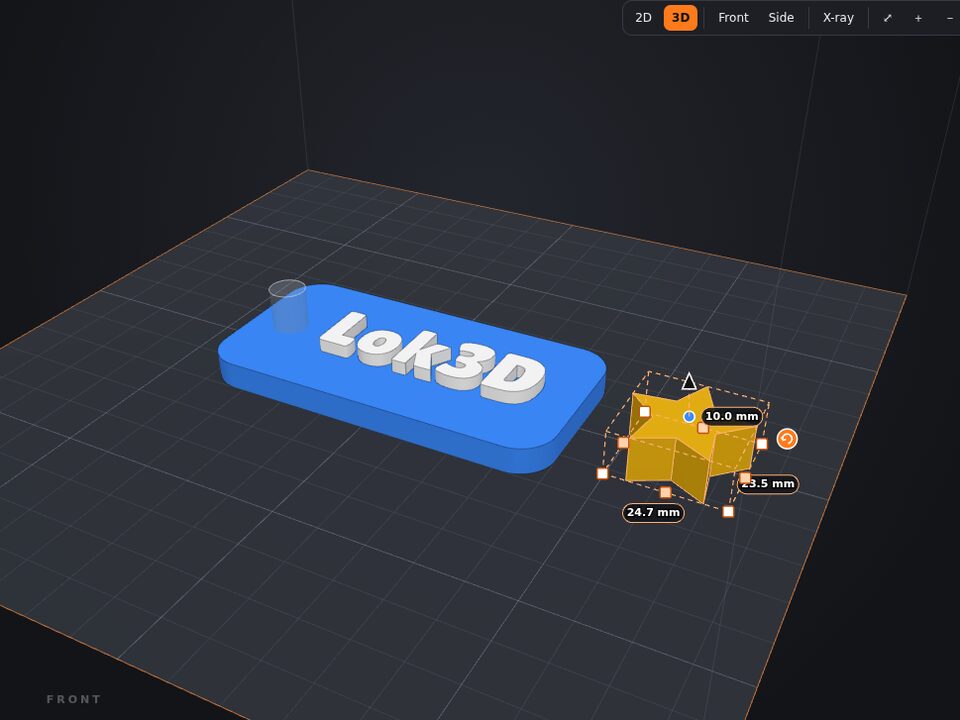
If you learned 3D with Tinkercad, you already know how to use Lok3D: drag shapes, turn some into holes and combine. The difference is that Lok3D was made for printing: what you design comes out ready for the slicer, in color, at the size of your printer.
 How to edit an STL online: cut, resize, deform, paint and combine
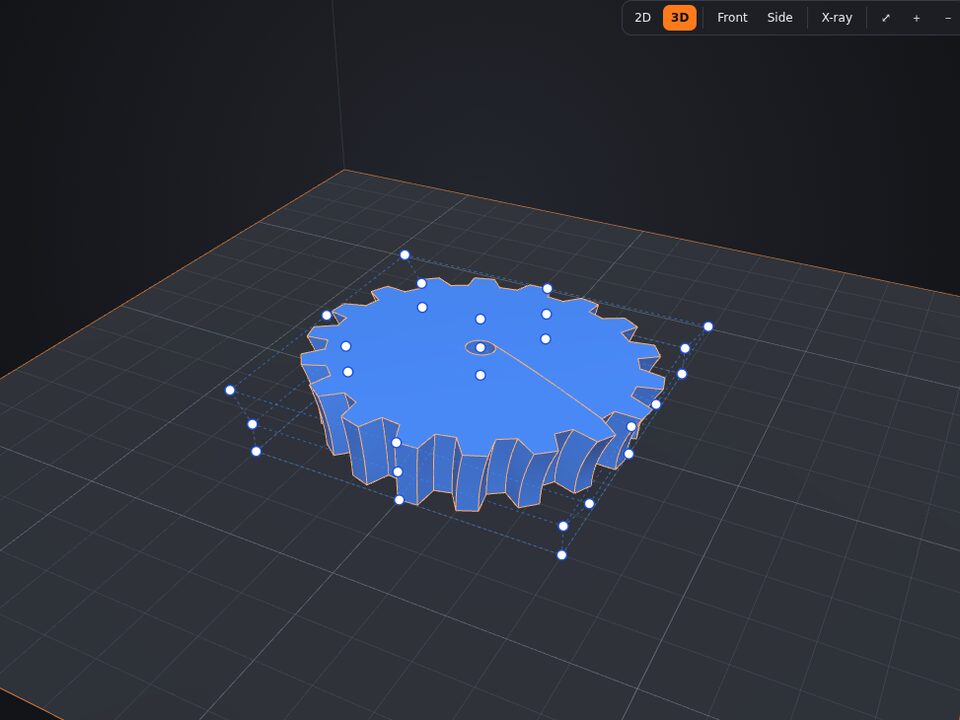
Downloaded a model that is almost what you need? No need to install anything: Lok3D opens the file in the browser and you edit it like any other part.
 How to make a name keychain for 3D printing
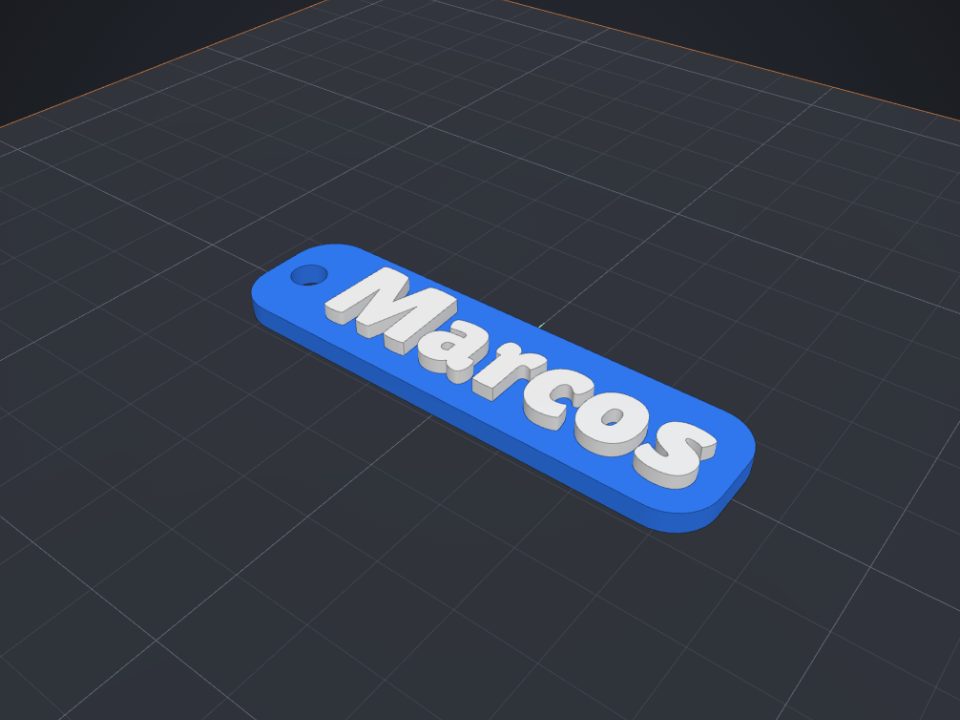
A name keychain is a great first project: it is ready in minutes, prints fast and makes a very personal gift.
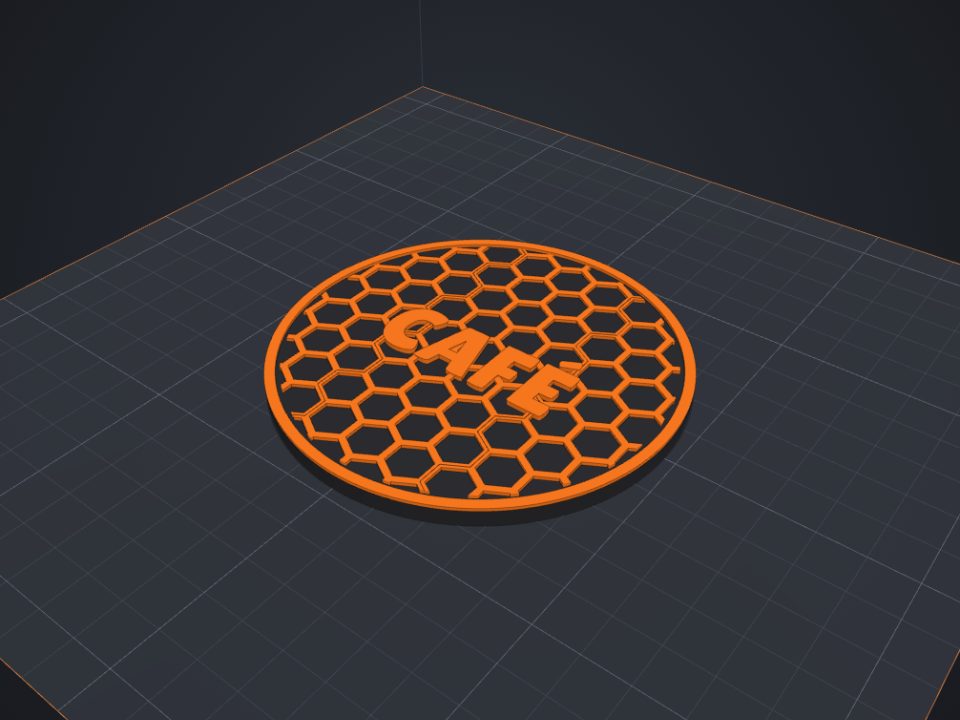 How to paint a model for multicolor printing on Bambu (AMS)
With the Paint tool you pick colors right on the part, like in Bambu Studio, and the 3MF keeps the painting.
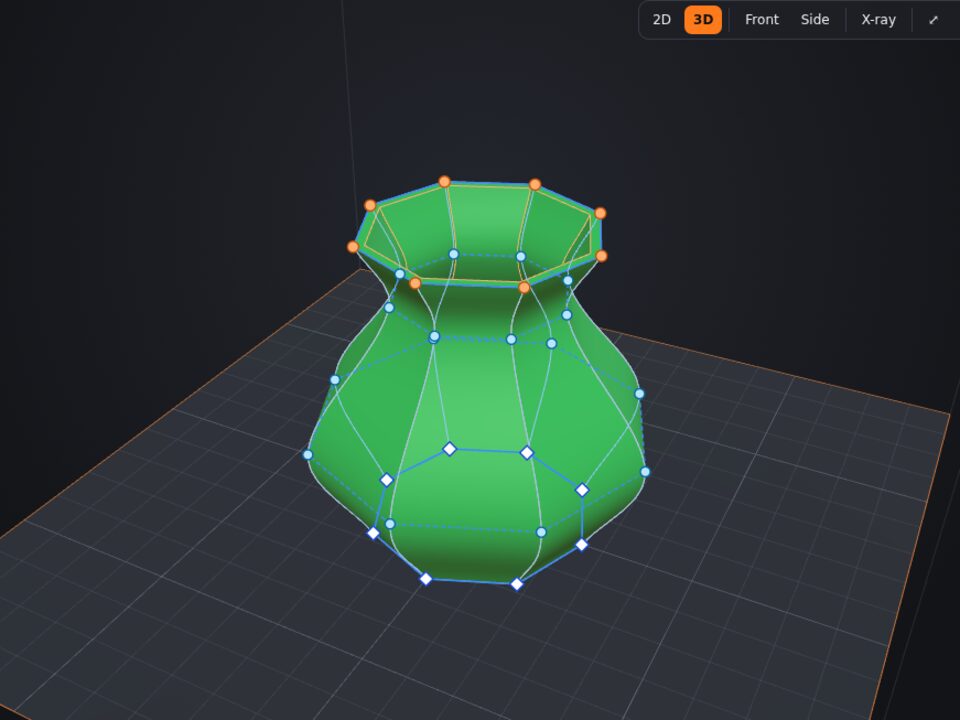 How to make a vase, cup or curved part with sections
A shape in Lok3D is a bottom outline and a top outline. Sections add outlines in between, so the wall can bulge, narrow and curve like a turned vase.
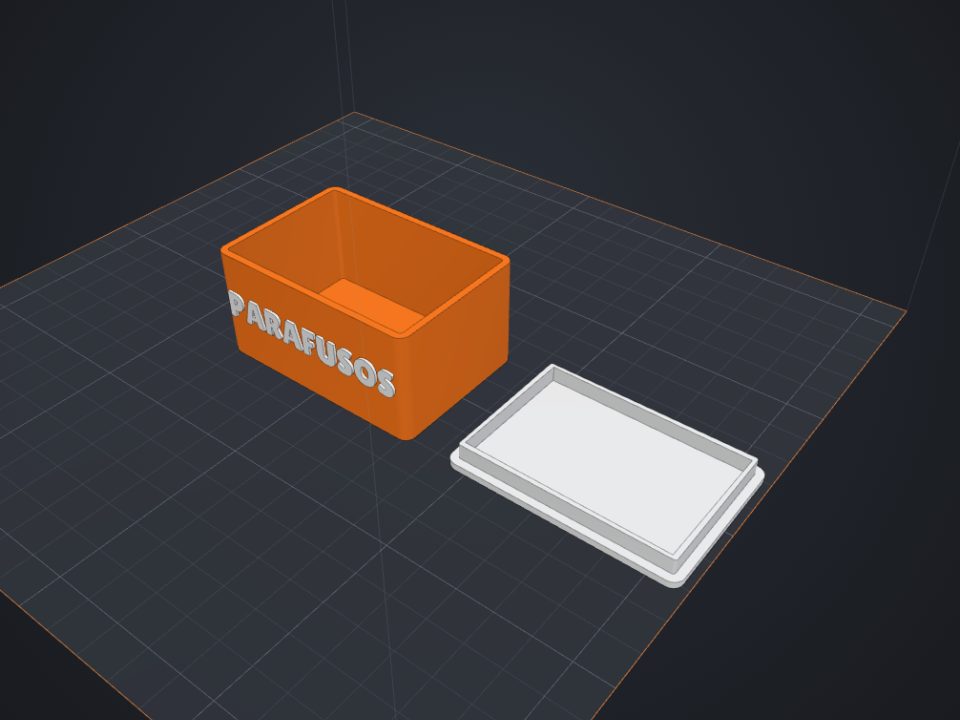 How to make a custom-size box with lid for 3D printing
The secret of a box with a lid is clearance: too tight and it will not close, too loose and it falls off. Here is how to get it right the first time.
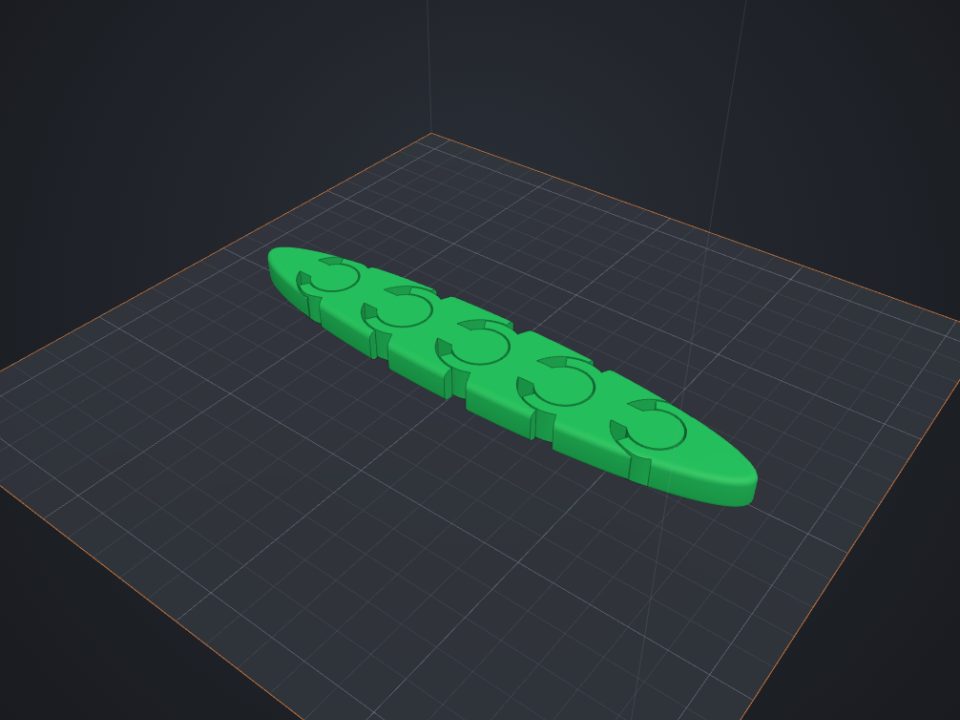 How to make an articulated part that comes off the printer ready
Print-in-place parts come off the printer already articulated: the joints print one inside the other, with a small clearance.
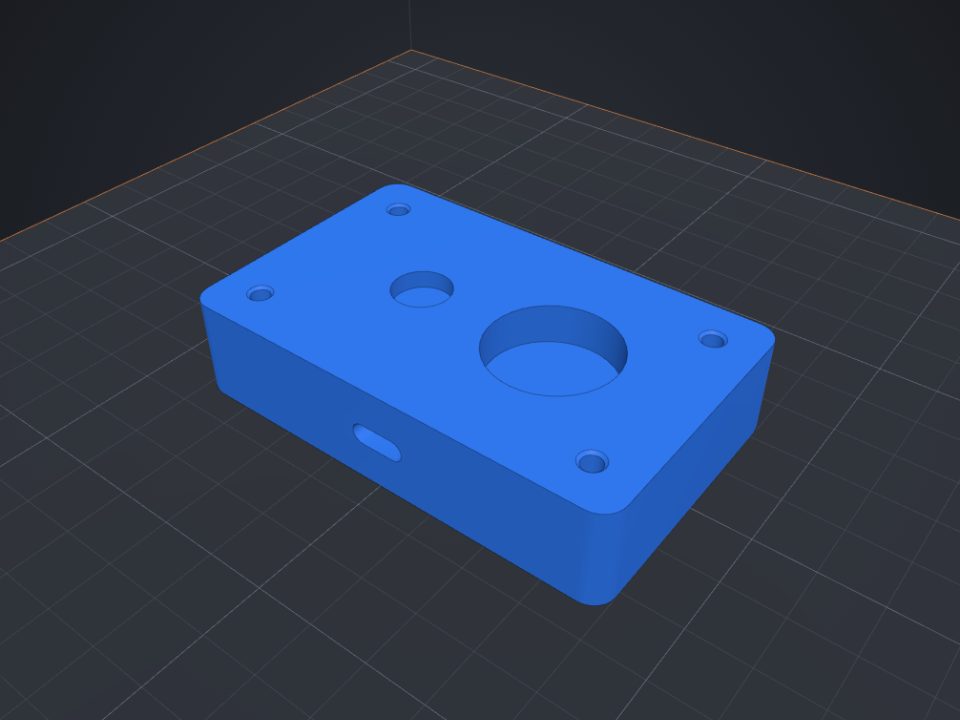 How to add screw holes, nut traps and magnet pockets
Printed holes always come out a bit smaller. Lok3D draws each hole with the right clearance already; you just pick where it goes.