Guides · 1 min read
How to paint a model for multicolor printing on Bambu (AMS)
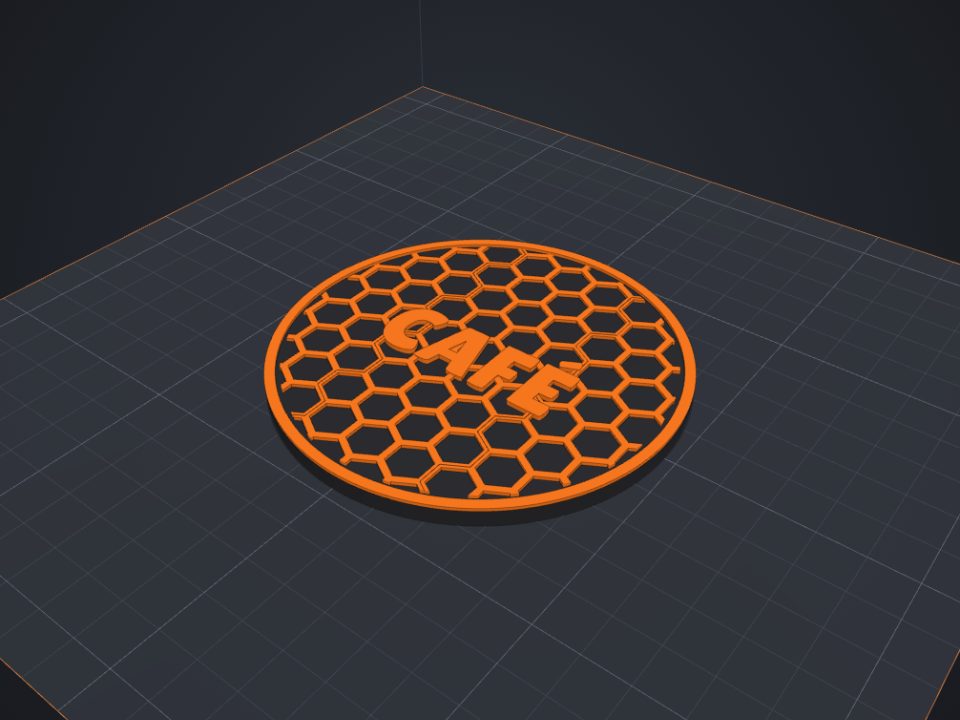
With the Paint tool you pick colors right on the part, like in Bambu Studio, and the 3MF keeps the painting.
Step by step
- Open or import the model
Create it in the editor or import an STL, OBJ or 3MF (File → Import, or Ctrl+I).
- Choose the Paint tool (C)
Pick the color and the mode: Fill (the smooth area around the click), Brush (drag) or Height (everything above the click, great for stripes).
- Paint
Click (or drag, in Brush mode) on the part. Alt+click picks an existing color; Ctrl+Z undoes.
- Export the 3MF
With "Download 3MF" (or "Open in Bambu Studio"), the painting goes along, in the format Bambu Studio, OrcaSlicer and Creality Print read.
- In the slicer
Assign each color to an AMS slot and slice as usual.
Tips
- Each color change wastes filament on the prime tower: fewer changes per layer = less waste.
- Details smaller than the nozzle disappear in print.
Other guides
 How to make a name keychain for 3D printing
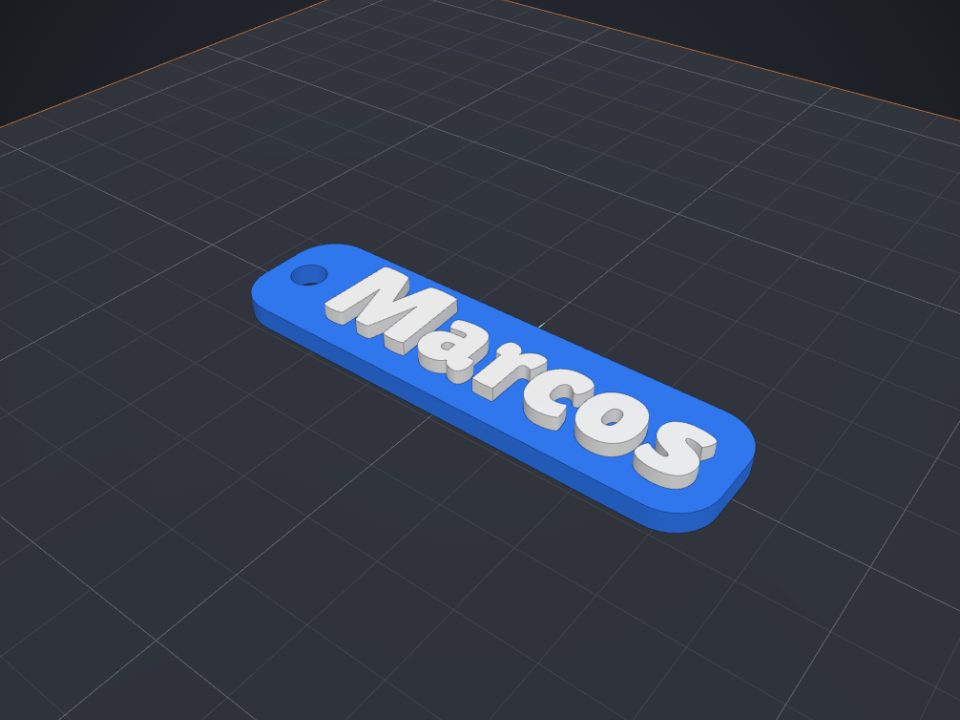
A name keychain is a great first project: it is ready in minutes, prints fast and makes a very personal gift.
How to make a name keychain for 3D printing
A name keychain is a great first project: it is ready in minutes, prints fast and makes a very personal gift.
 How to make a custom-size box with lid for 3D printing
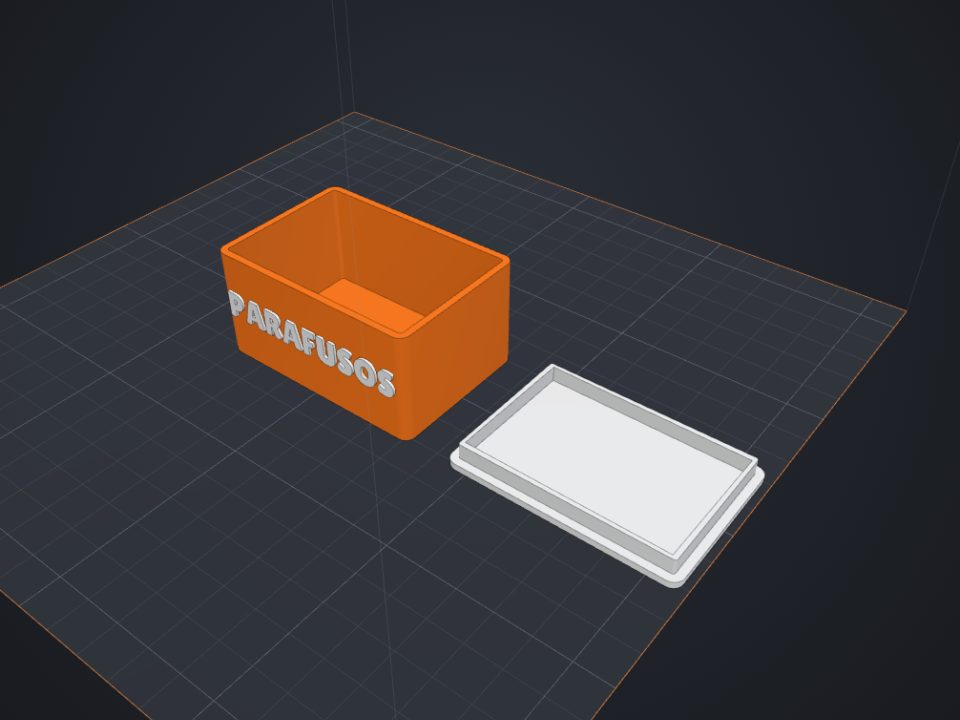
The secret of a box with a lid is clearance: too tight and it will not close, too loose and it falls off. Here is how to get it right the first time.
How to make a custom-size box with lid for 3D printing
The secret of a box with a lid is clearance: too tight and it will not close, too loose and it falls off. Here is how to get it right the first time.
 How to make an articulated part that comes off the printer ready
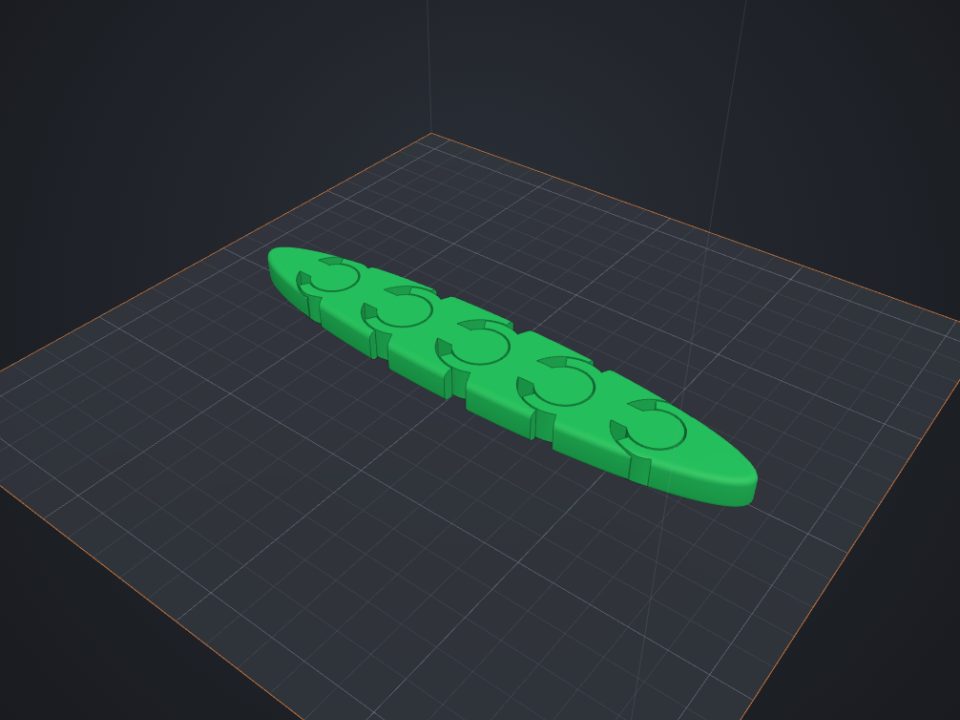
Print-in-place parts come off the printer already articulated: the joints print one inside the other, with a small clearance.
How to make an articulated part that comes off the printer ready
Print-in-place parts come off the printer already articulated: the joints print one inside the other, with a small clearance.
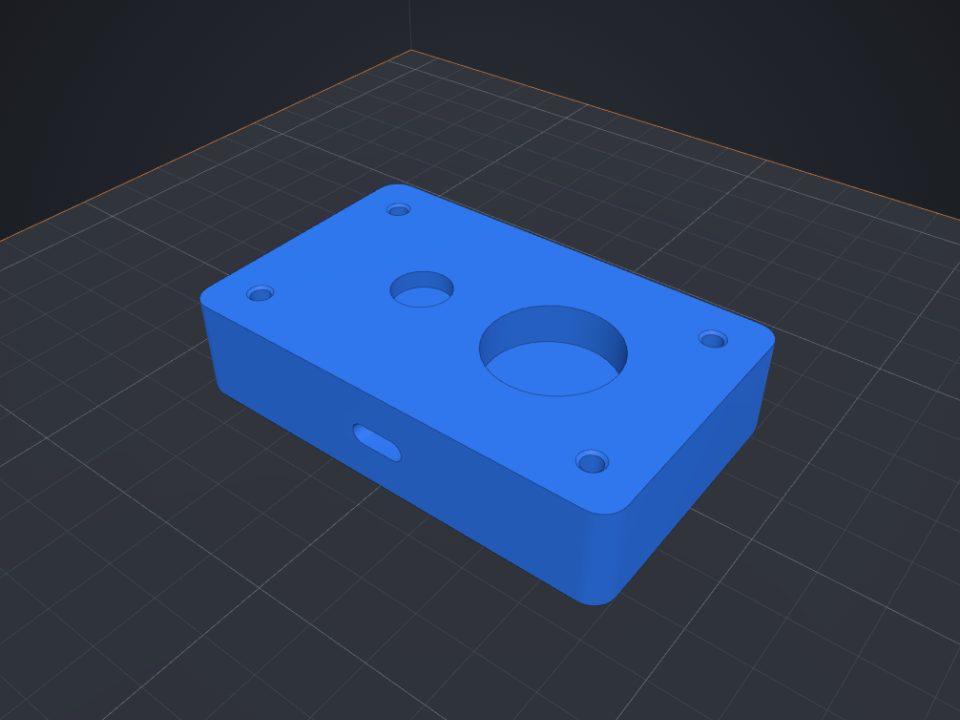 How to add screw holes, nut traps and magnet pockets
Printed holes always come out a bit smaller. Lok3D draws each hole with the right clearance already; you just pick where it goes.
How to add screw holes, nut traps and magnet pockets
Printed holes always come out a bit smaller. Lok3D draws each hole with the right clearance already; you just pick where it goes.